06.2

What can we do with Gemini?

The Gemini interface brings together ways to interact, add context, and use tools to create or research. This guide explains the options shown in the infographic.

Description and uses: The image is a visual guide, not a guaranteed list of features. Menus, names, limits, and availability vary by account, age, device, language, region, and Workspace edition. School accounts may also depend on administrator settings. [25]

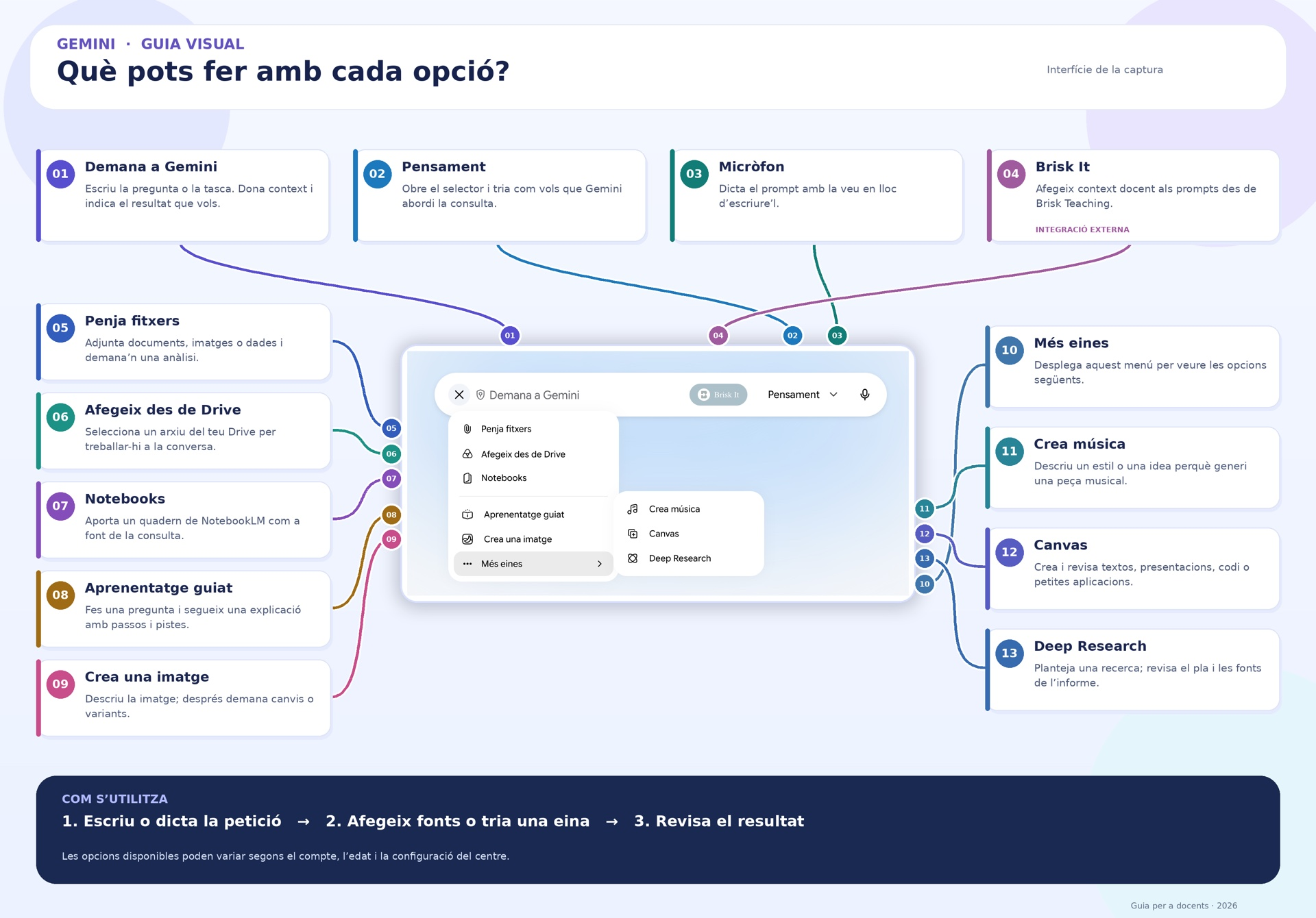
iAducació infographic in Catalan showing thirteen Gemini options: ask, Thinking, microphone, Brisk It, files, Drive, Notebooks, Guided Learning, images, music, Canvas and Deep Research.
Image provided by iAducació · Visual guide to Gemini options. Open full-size infographic ↗

Options explained

01–04 · Ask and interact

  1. Ask Gemini: state the task, context, and result format you need; then review and refine the response.
  2. Thinking: choose an available mode or model for the task. Options and limits depend on the account. [25]
  3. Microphone: dictate a prompt when voice input is available. Check what is shared, and do not dictate students’ personal data. [34]
  4. Brisk It: an external extension integration that can add teaching context to prompts. It is not a Google product; check school policies before installing it or using it with data. [33]

05–07 · Files, Drive, and notebooks

  1. Upload files: ask questions about documents, spreadsheets, images, videos, and other supported formats. Check the data and limit personal information shared. [26]
  2. Add from Drive: connection and access may require administrator enablement for work or school accounts. [26]
  3. Notebooks: notebooks can organise sources and conversations. Google’s current help says connected notebooks require a personal account and age 18+, so do not assume this is available to students using school accounts. [27]

08–12 · Learn and create

  1. Guided Learning: ask for progressive explanations, questions, and hints to understand a topic, rather than only a final answer. [28]
  2. Create an image: generate or edit images; check rights, visual errors, and age requirements before use. [31]
  3. Create music: describe an idea or style to generate a track; access and limits may vary. [32]
  4. Canvas: create or edit documents, presentations, apps, and code in a workspace. Review the result before sharing or running it. [29]

10 and 13 · More tools

  1. More tools: open the menu to see what is enabled on your account; not every option is always available.
  2. Deep Research: creates a research plan and report using sources. Open the original sources and check that they support each claim. [30]

Description and uses: A careful workflow: write the request → add only necessary context or choose a tool → review the result and its sources.